This article walks you through the entire workflow of a spot request—from time-saving document analysis to sending the request to your partners.
1. Select Quote Type & Transport Mode
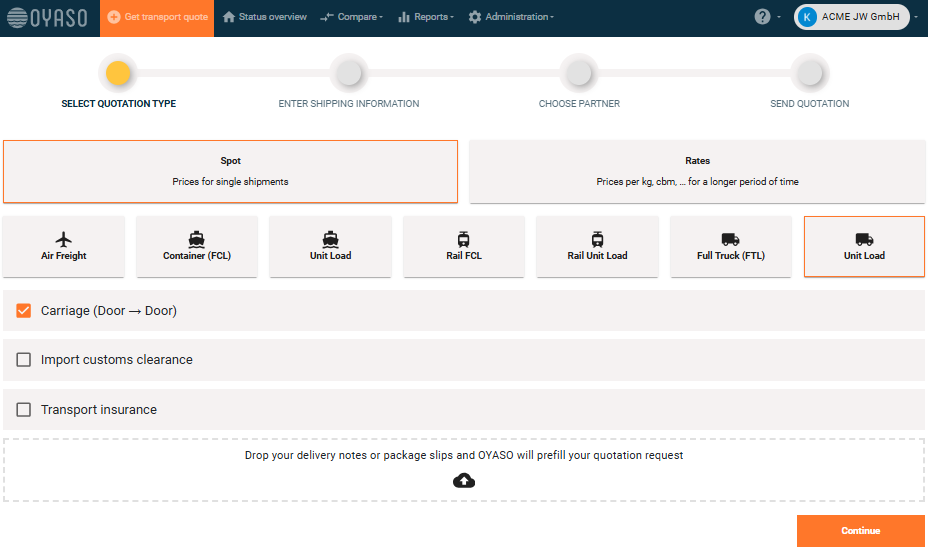
Start the process via the "Request Transport Quote" button.
-
Type of Request: Select "Spot" for daily updated prices (single shipments).
-
Transport Mode: Choose the desired means of transport, e.g., Air Freight, Sea Freight (FCL/LCL), or Road Freight.
-
Transport Stages: Depending on the mode of transport, you define the supply chain here:
-
Sea, Air & Rail Freight: You can split the route and specifically select Pre-carriage (Door -> Port), Main carriage (Port -> Port), or On-carriage (Port -> Door) using checkboxes.
-
Road Freight: Here, the transport usually goes directly "Door to Door".
-
-
Additional Options: Select Import Customs Clearance or Transport Insurance if required.
New: Save time with AI document upload (currently available for land freight). When you select “Land Transport,” an upload field will appear under the additional options.
How it works: Drag and drop your delivery note or packing list into the field, or click on it to select a file.
Your benefit: OYASO automatically reads the document and pre-fills the data for you in the next step. (Currently, one file per order is possible).
2. Enter Shipment Details & Deadlines
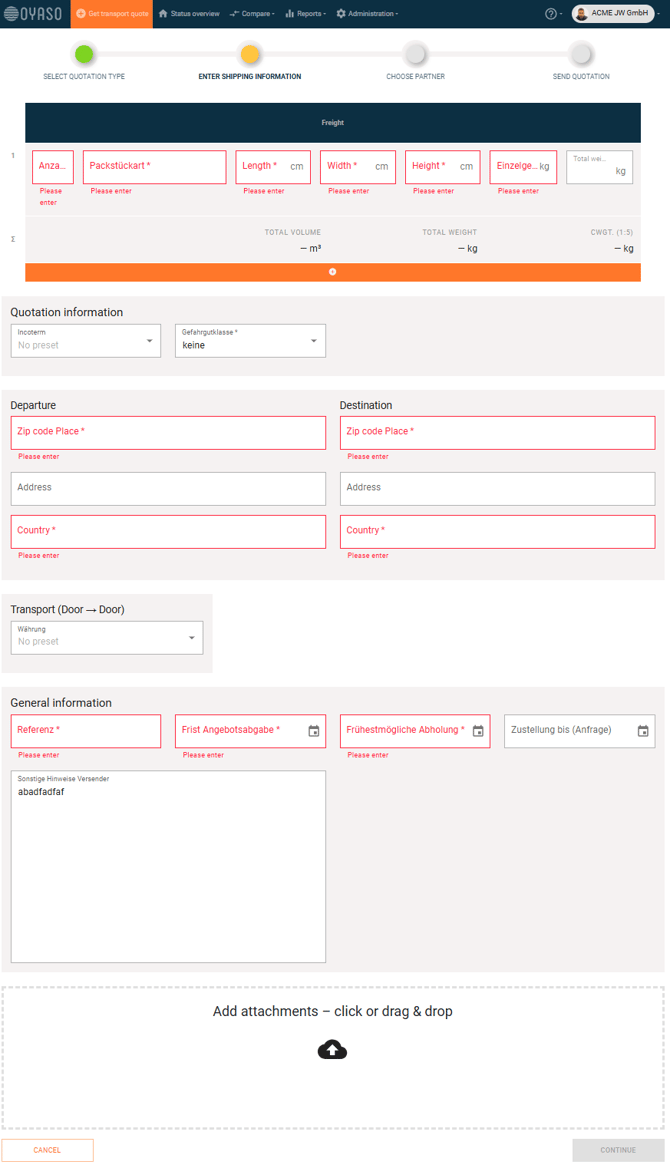
In this step, you enter all the hard facts about the shipment:
Daten-Check: Haben Sie im ersten Schritt ein Dokument hochgeladen? Dann sind Felder wie Packstücke, Maße, Gewichte oder Adressen bereits automatisch vorausgefüllt. Prüfen Sie diese kurz auf Richtigkeit.
-
Packages: Enter the quantity, dimensions, and weight. The system automatically calculates the volume and the chargeable weight.
-
Route: Define the origin and destination addresses. For sea/air freight, you also specify the respective ports here.
-
Incoterm: Select the delivery terms (e.g., DAP, EXW).
-
Deadlines & Dates: Important! At the bottom, you set the Quote Deadline (By when must the price be submitted?) and the Pickup Date.
-
Other Instructions: Use the large text box on the bottom left for special loading instructions (e.g., "Goods not stackable", "Forklift license required").
Pro-Tip: In the Admin Settings, you can define a Default Text (e.g., your general delivery times). This text will then automatically appear pre-filled in every new request, saving you manual typing effort. Click here for the article
3. Select Logistics Partners
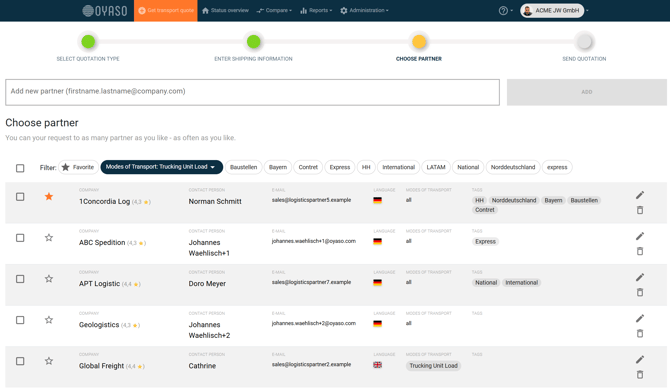
Determine who should receive your request.
-
Existing Partners: Simply select your carriers from the list using the checkboxes. Use the filters (e.g., "Transport Mode: Rail LCL") to narrow down the list.
-
Invite New Partners: Is a service provider missing? Simply enter their email address at the top (e.g., firstname.lastname@company.com) and click "Add". The partner is immediately added to the list and receives the request directly via email.
4. Review & Send Request
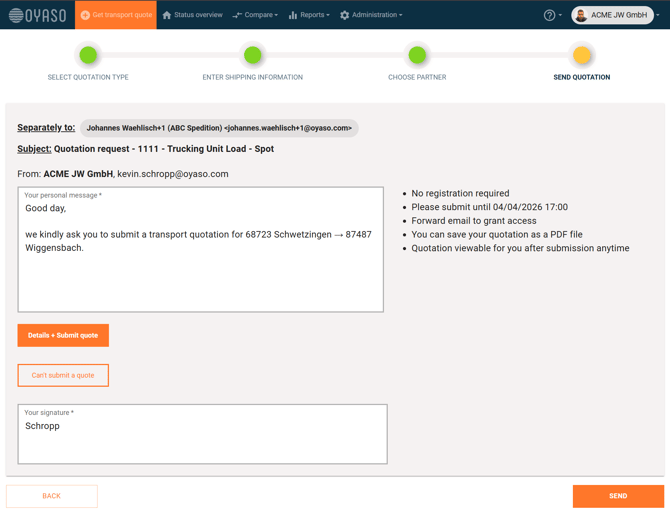
Before the email goes out, you will see a preview.
-
Email Text: You can customize the subject line and the personal cover letter.
-
Preview: On the right side, you will see the summary (deadlines, locations) exactly as the carrier will receive it.
-
Completion: Click "Send" to publish the request.