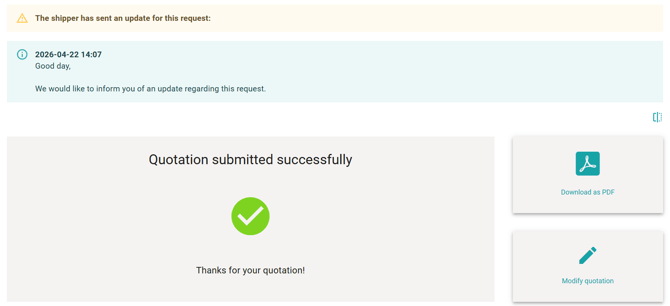
If details change during a freight request, OYASO provides centralized and transparent message management.
In this article, you will learn how to edit unsent drafts and communicate subsequent adjustments (e.g., new pickup times or address details) directly and seamlessly to all involved carriers.
1. Editing Drafts (Templates)
As long as you have not yet sent a created request to a Logistics Service Provider (LSP), the system saves it as a draft.
-
Open the respective request from your Status Overview.
-
Click the "Edit" (pencil icon) button on the right side.
-
You can now adjust all parameters (routing, dates, freight dimensions) as usual before finally sending the request.
2. Sending Changes to an Already Sent Request
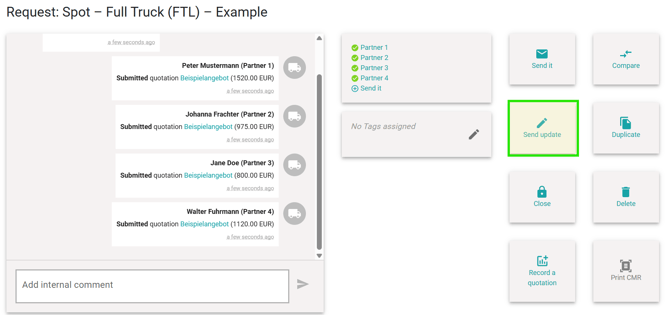
The moment you send the request to at least one carrier, the "Edit" button automatically changes into the "Send changes" button.
If you want to inform your partners that, for example, the pickup day has been postponed or an address detail has changed, proceed as follows:
-
Click on "Send changes" within the active request.
-
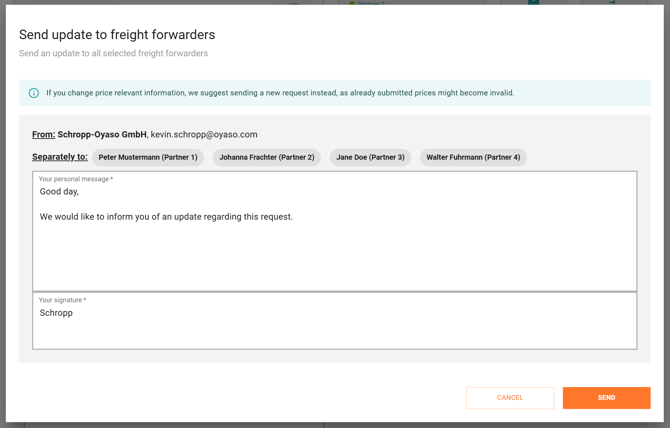
The "Send update to carriers" window will open.
-
OYASO automatically selects all carriers who received this request, ensuring no one is left with outdated information.
-
Enter your personal message with the exact details of the change in the text field and click "Send".
IMPORTANT: Avoid price-relevant changes using this function! If essential, price-forming factors change significantly (e.g., considerably higher weight, different zip code, switch from standard to express), you should not send a simple text update. There is a risk that not all carriers will read the information, and you will end up comparing quotes based on different assumptions. Best practice for price-relevant changes: Instead, click on "Close" (to cancel the current request) and use the "Duplicate" button. This allows you to cleanly adjust the values in the system and start a fresh, legally secure request. This is usually faster and prevents errors when awarding the contract.
3. What Happens After Sending the Update?
This feature ensures maximum traceability for both sides:
-
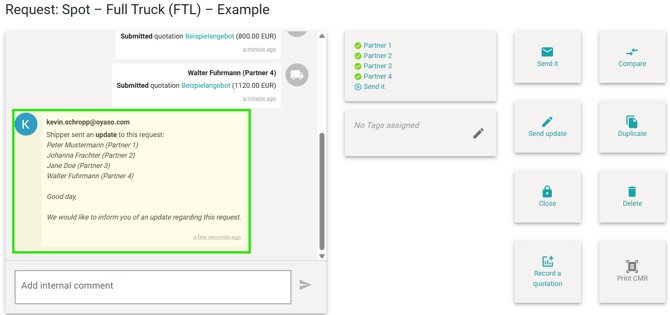
Your View (Seamless History): As soon as you send the update, the exact text including a timestamp is immediately saved in your internal Activity Feed (the timeline on the left side of the request). This ensures your entire team knows what was communicated.
-
The Carrier's View: Your logistics partners will immediately receive an email with your text, prompting them to revise their quote. When the carrier opens their OYASO dashboard, they will also see a prominent yellow warning notice with your update details at the very top before they (re-)submit their offer.