
It happens that a price is renegotiated over the phone or a carrier makes a typo when submitting their quote. You do not have to ask your partner to re-enter the offer into the system—you can easily correct it yourself.
Method 1: Via the Price Comparison
-
Open the price comparison for the respective request.
-
In the overview, click on the carrier's name at the top (in the column header).
-
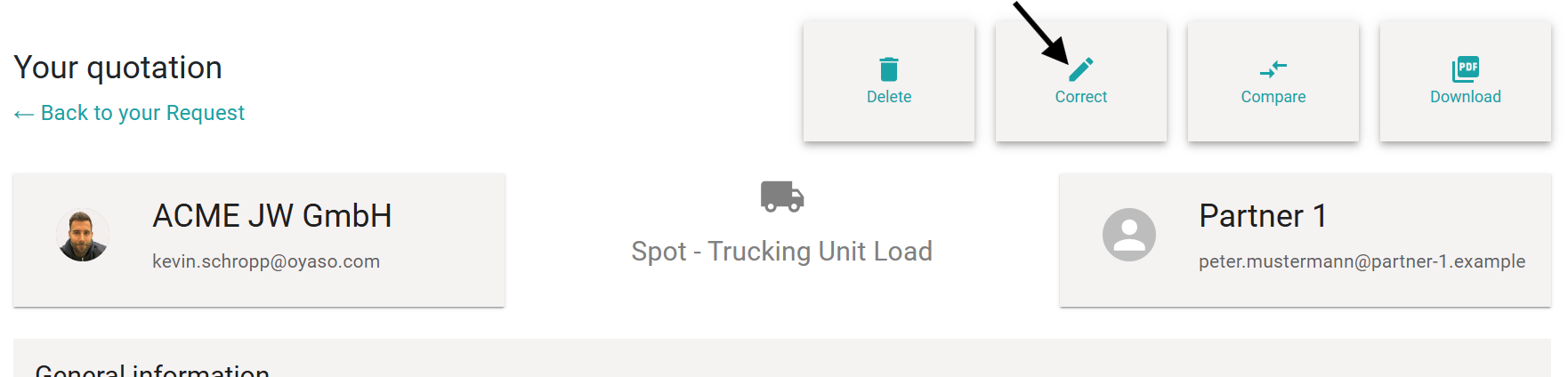
The detailed view of the offer will open. Click the "Correct" (Korrigieren) button (pencil icon) in the top right corner.
-
Adjust the price or the details and save your changes.

Method 2: Via the Status Overview
-
Go to your Status Overview.
-
Click on "More..." on the right side of the respective request to open the details.
-
You will now see a box listing all invited service providers. Click directly on the partner's name (e.g., "Partner 1") whose offer you want to edit.
-
You will land directly in the offer mask. Click "Correct" (pencil icon) in the top right corner.
Important Note on Transparency: > For documentation purposes, every change is transparently saved in the request's Activity Log / Timeline (Verlauf). This ensures that it is always completely traceable for everyone involved who changed the price, when they did it, and why.